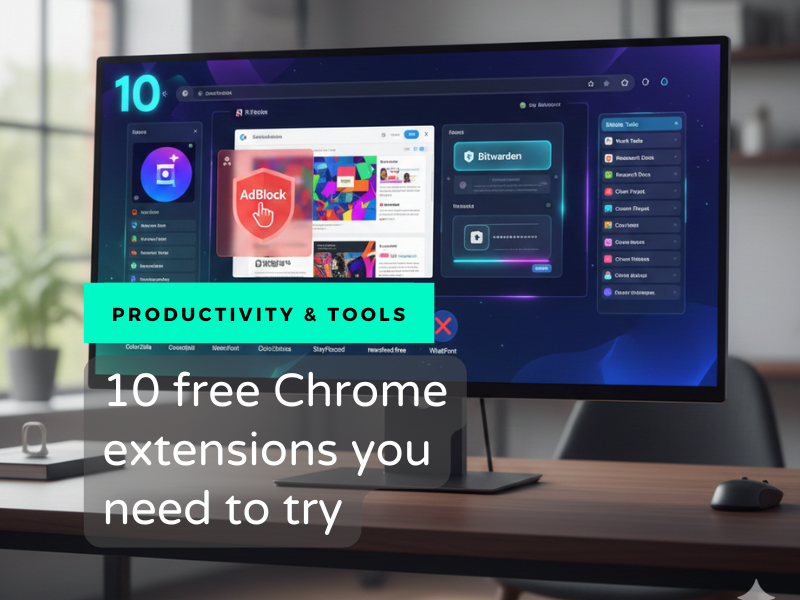
Do you spend most of your screen time in Google Chrome? I do. Over the years, I’ve discovered the power of Chrome extensions to help me reach peak productivity. Here are the 10 free tools I’m using in 2026 to keep me sane and efficient:
Free Chrome extensions to super-charge your productivity
1. AdBlock
This is the very first extension I install on every new browser I use. I can’t use the internet and stay sane without an ad blocker.
Some people claim ad blockers are immoral because they deprive websites of ad revenue. I say it’s immoral to load up your page with ads and expect me to use your site with all that visual clutter. Every time I use a browser without an ad blocker I am shocked anew at how many of my favorite sites are basically unreadable because they’re covered in ads.
I’d rather use an ad blocker and respect you as someone who respects your readers — which makes me more likely to buy from you.
AdBlock is free, with an optional $4/month upgrade for advanced features, including a VPN. I’ve only ever needed the free plan.
If you find AdBlock isn’t catching everything lately, uBlock Origin Lite is an alternative designed for the latest Chrome updates. I haven’t noticed any issues with it, though.
2. Bitwarden Password Manager
A password manager stores all of your passwords in an encrypted vault, which means you only need to remember one password — that of the vault — to access all of your other passwords. They also make it easy to generate strong and unique passwords for each account, which is a must if you want to keep your accounts secure from hackers.
Probably the most well-known password manager is LastPass, but there’s also 1Password, Dashlane, Bitwarden… and many, many more.
I use Bitwarden, and I’m super-happy with it. It’s free for regular use, and only $19.80/year for more advanced features, like OTP (one-time password) and built-in authenticator. I have the paid version because I don’t use a smartphone, and Bitwarden lets me bypass the app requirement by generating OTPs and authentication codes.
But the main features — super-secure randomly generated passwords, unlimited logins, use on multiple devices, etc. — are available 100% for free.
3. StayFocusd
The internet is addictive, period. And did you know that willpower is actually a muscle? That means the more you use it the stronger it gets, but also, it gets tired sometimes. Working alone takes so much willpower that I can’t simultaneously police myself to stay on task all the time.
Enter StayFocusd, a handy little extension that helps me stay disciplined by limiting the time I’m allowed to spend on time-wasting websites. Read this post for more info on how I use this extension with the next one for maximum internet productivity.
4. Newsfeed Eradicator
This extension helps you stay focused on social media. Exactly as it sounds, it eradicates the feed on many social media sites, like Facebook, LinkedIn, Reddit, YouTube, etc. It also blocks the “suggested videos” sidebar in YouTube, so I can go to YouTube to watch a tutorial, but won’t get distracted by the marginally related content on the sidebar.
This is a must-have if you want to use Social Media but don’t want to get sucked into the addictive doom-scrolling the feed was designed for.
5. Open in Sidebar
Multitasking is a myth. The brain is not capable of multitasking; at best, it’s capable of switching very quickly between different tasks.
This is called context switching — shifting your focus from one task to another — and it’s a sure recipe for distraction. But sometimes, you do need to have two tabs open at once. For example, I like having my Gemini chatbot open while I figure out a new automation or software, and having it open on my second screen involves me having to turn my head, switch to that tab if I opened another one in the meantime, and only then type in my question. Way too much room for distraction.
That’s why I searched for and found this nifty little extension.
It lets you view any website as a sidebar on the right side of your screen. In my case, it’s an ever-running Gemini chat that follows me around no matter what tab I’m working in.
You can use this sidebar for any website you access all the time, whether that’s your own chatbot, your task list, your podcast player, or anything else!
Side note: (pun intended 😁) Google is currently rolling out a native side panel that will include a tab-aware Gemini sidebar — meaning it can read what’s in your open tab! I don’t have this option yet, but when it becomes available for me, I’ll probably stop using this extension.
Free Chrome Extensions for client work
6. Screenpal
Loom seems to get the most attention in the online business world, but I prefer a similar extension, Screenpal. I use it to record quick walk-throughs and tutorials for clients, and it allows me to upload and share them with one click when I’m done.
The reason I use Screenpal as opposed to its better-known alternative Loom is because the free extension is part of the video hosting solution I use in my business. Screenpal has a desktop app for recording and editing videos, and offers unlimited storage in a branded portal.
And it’s 100% FREE for videos up to 15 minutes long — including the desktop editor plus unlimited hosting! I do pay $120 a year for the Deluxe tier, because I like having unlimited recording, custom domains for video hosting, and AI transcription, chapters, and summaries.
7. ColorZiller Color Picker
I’m not a designer; that’s the first thing I tell my clients when they ask me to create sales pages and the like.
But I’m pretty good at following existing designs, so if you bring me your brand guide or website, I can create a landing page that looks pretty good and is right on brand.
Sometimes my clients ask me to copy their website, but they don’t quite know the exact colors their designer used. That’s where the ColorZilla extension comes in. With the click of the extension and a quick page refresh, I can pull color from any web page or anywhere else on my desktop, and copy the hex code right into Canva, MailerLite, or whichever other software I’m working in.
This is a super-useful tool that saves me hours of waiting for clients to check with their designer and get back to me.
8. WhatFont
Like ColorZilla, WhatFont clues me in on the typefaces my clients are using on their sites, so I can create their other assets to match. It even tells me the font size, weight, and color, so I can get my designs perfectly on brand.
It also helps when I see an especially gorgeous font that I don’t recognize.
9. BuiltWith
I call this extension my secret stalker extension 😊. With one click, I can see the exact tech stack a website is built on. This helps me when I’m talking to leads or clients who don’t know the details of their website, or when they ask me how to build something that a competitor has on their website. All I need to do is stalk the site with BuiltWith, and I’m able to give a coherent answer and ballpark price quote.
10. Colour Contrast Checker
Do you care about accessibility? That’s when you make sure your site is usable for people with all kinds of disabilities.
One of the most basic parts of accessibility is making sure your typeface and background have enough contrast between them that people of all sight levels can read them. Having dark words on a dark background, or light words on a light background, can be impossible for some of your audience to read.
There are legal requirements for the correct level of contrast, and fortunately, there are many extensions that can analyze your page and tell you if your colors meet the guidelines or not.
I use Colour Contrast Checker, probably because that was the first one that came up in Google Search.
Basic Chrome Extension Safety
These are my current Chrome extensions as of January 2026, but they tend to change as I find better ones or my work habits change.
Before I wrap up this post, I want to give a couple of safety tips for installing and using extensions.
- Always do your due diligence before installing a new extension.
- Make sure the extension follows Google’s best practices.
- Check the reviews and ratings in the Chrome store, paying special attention to the most recent reviews.
- Research the developer online to make sure they appear legit.
- Review the update history to make sure the developer is regularly updating the extension.
- Review the permissions the extension requires before you install it, and make sure the permissions match the extension’s functions. For example, a color-picker extension should not need permission to “read and change all your data on websites you visit.”
- Consider restricting permissions for any non-essential extensions. I wasn’t thrilled about Open in Sidebar’s default permissions, so I restricted it to only read and change data on Specific Sites. You can do this by going to the Extensions page in Chrome and clicking Details on a specific extension.
- Only install extensions directly from your own search on the Chrome store, or via the developer’s website if you’re 100% sure it’s a legit site. For example, you can sign up for Bitwarden via their site, and then access the extension page directly from their download page.
Do you use any cool extensions you think I should know about? Let me know so I can check them out!